
Adobe 入门指南
This document explains how to install the FlexLink plugin into your Adobe applications to use Flexbar’s Adobe integration features.
Since the FlexLink plugin is built using the legacy Adobe CEP framework, it may not run properly on Apple Silicon devices. We’re actively working on a new UXP version to replace it.
启用开发者模式
First, update the following Adobe setting to prevent your host application (Photoshop, InDesign, etc.) from showing warnings about unsigned extensions. Refer to the HTML Extension Cookbook section on Debugging Unsigned Extensions for more details:
Windows: Open regedit and navigate to
HKEY_CURRENT_USER/Software/Adobe/CSXS.<X>. Add a new string value namedPlayerDebugModeand set it to1.⚠️ 确保
PlayerDebugMode中没有多余的空格。
Mac: Open Terminal and run:
defaults write com.adobe.CSXS.12 PlayerDebugMode 1defaults write com.adobe.CSXS.12 AllowUnsignedExtensions -bool true⚠️
CSXS.<VERSION>needs to be adjusted according to your Adobe software version, version 12 for 2025, version 11 for 2024
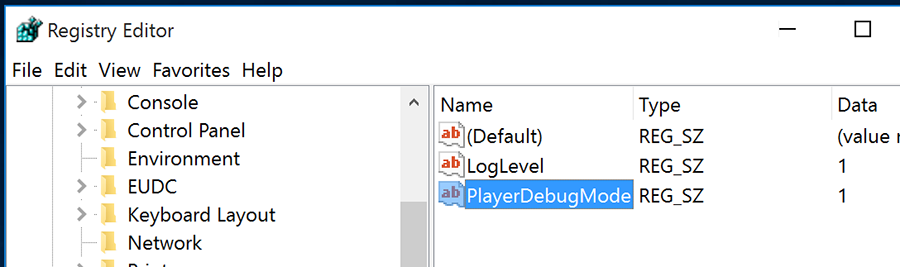
在 Windows 上,Regedit 位于 C:\Windows\regedit。您可以从 CMD 打开它,或者按 WIN + R 并输入 regedit。

在 macOS 上,终端位于 应用程序 > 实用工具 > 终端。
安装 FlexLink 插件
Download and extract the FlexLink archive. Copy the com.eniac.FlexLink-1.0 folder to the appropriate directory:
以下路径是 2025 版本的默认安装位置。根据您的设置需要调整它们。
Windows
- Adobe Premiere Pro:
C:\Program Files\Adobe\Adobe Premiere Pro 2025\CEP\extensions - Adobe Photoshop:
C:\Program Files\Adobe\Adobe Photoshop 2025\Required\CEP\extensions
macOS
- Adobe Premiere Pro:/Applications/Adobe Premiere Pro 2025/Adobe Premiere Pro 2025.app/Contents/CEP/extensions
- Adobe Photoshop: /Applications/Adobe Photoshop 2025/Adobe Photoshop 2025.app/Contents/Required/CEP/extensions You may need to right-click on the application and select "Show Package Contents" to access these folders. Copy the com.eniac.FlexLink-1.0 folder to the extensions directory of the respective application.
验证安装
启动 Adobe 应用程序后,转到 窗口 > 扩展 并查找 Flex Link。
You’re all set! Flexbar’s Adobe integration is now ready to use.