
アドビのスタートガイド
このドキュメントでは、Flexbar の Adobe 統合機能を使用するために、Adobe アプリケーションに FlexLink プラグインをインストールする方法について説明します。
FlexLink プラグインは従来の Adobe CEP フレームワークを使用して構築されているため、Apple Silicon デバイスでは正しく動作しない可能性があります。私たちは、これに代わる新しい UXP バージョンの開発に積極的に取り組んでいます。
開発者モードを有効にする
First, update the following Adobe setting to prevent your host application (Photoshop, InDesign, etc.) from showing warnings about unsigned extensions. Refer to the HTML Extension Cookbook section on Debugging Unsigned Extensions for more details:
窓: Open regedit and navigate to
HKEY_CURRENT_USER/Software/Adobe/CSXS.<X>. Add a new string value namedPlayerDebugModeand set it to1.⚠️
PlayerDebugModeに余分なスペースがないことを確認してください。
Mac: Open Terminal and run:
defaults write com.adobe.CSXS.12 PlayerDebugMode 1defaults write com.adobe.CSXS.12 AllowUnsignedExtensions -bool true⚠️
CSXS.<VERSION>needs to be adjusted according to your Adobe software version, version 12 for 2025, version 11 for 2024
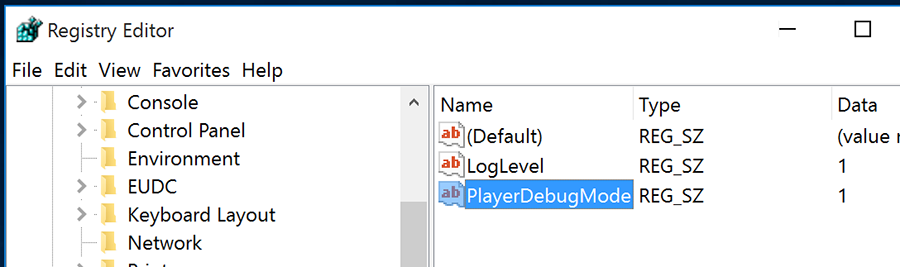
窓 では、Regedit は C:\窓\regedit にあります。 CMD から開くか、「WIN + R」を押して「regedit」と入力して開くことができます。

macOS では、ターミナルは「アプリケーション > ユーティリティ > ターミナル」にあります。
FlexLink プラグインをインストールする
Download and extract the FlexLink archive. Copy the com.eniac.FlexLink-1.0 folder to the appropriate directory:
以下のパスは、2025 バージョンのデフォルトのインストール場所です。セットアップの必要に応じて調整してください。
窓
- Adobe Premiere Pro:
C:\Program Files\Adobe\Adobe Premiere Pro 2025\CEP\extensions - Adobe Photoshop:
C:\Program Files\Adobe\Adobe Photoshop 2025\Required\CEP\extensions
マコス
- Adobe Premiere Pro: /Applications/Adobe Premiere Pro 2025/Adobe Premiere Pro 2025.app/Contents/CEP/extensions
- Adobe Photoshop: /Applications/Adobe Photoshop 2025/Adobe Photoshop 2025.app/Contents/Required/CEP/extensions You may need to right-click on the application and select "Show Package Contents" to access these folders. Copy the com.eniac.FlexLink-1.0 folder to the extensions directory of the respective application.
インストールの検証
Adobe アプリケーションを起動した後、「ウィンドウ > 拡張機能」に移動し、「Flex Link」を探します。
準備は完了です! Flexbar の Adobe 統合を使用する準備ができました。