
Edit Foreground
This document describes how to customize the foreground of a key, including its icon, text, shadow, and other visual elements.
Interface Overview
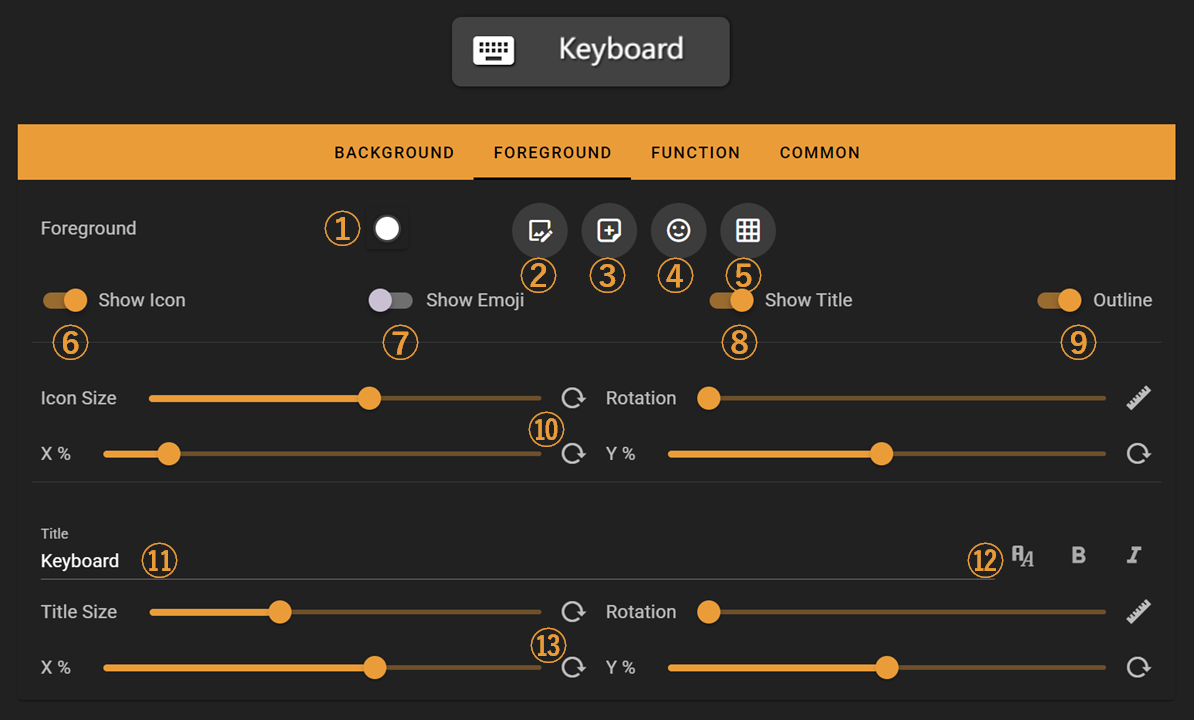
Feature Overview:
- Foreground Color Settings
- Built-in Icon Selector
- Custom Icon Selector
- Emoji Selector
- Preset Layout Selector
- Show Icon (mutually exclusive with Show Emoji)
- Show Emoji (mutually exclusive with Show Icon)
- Show Title
- Show Shadow
- Icon Parameter Settings - Adjust icon size, rotation, and XY-axis position using sliders
- Title Edit Box - Supports multi-line text
- Title Font Settings - Adjust title font, bold, and italic styles
- Title Parameter Settings - Adjust title size, rotation, and XY-axis position using sliders
Built-in Icon Selector
Click ② in the foreground editing interface to open the built-in icon selector.
The built-in icon selector contains over 7,000 icons organized by category.
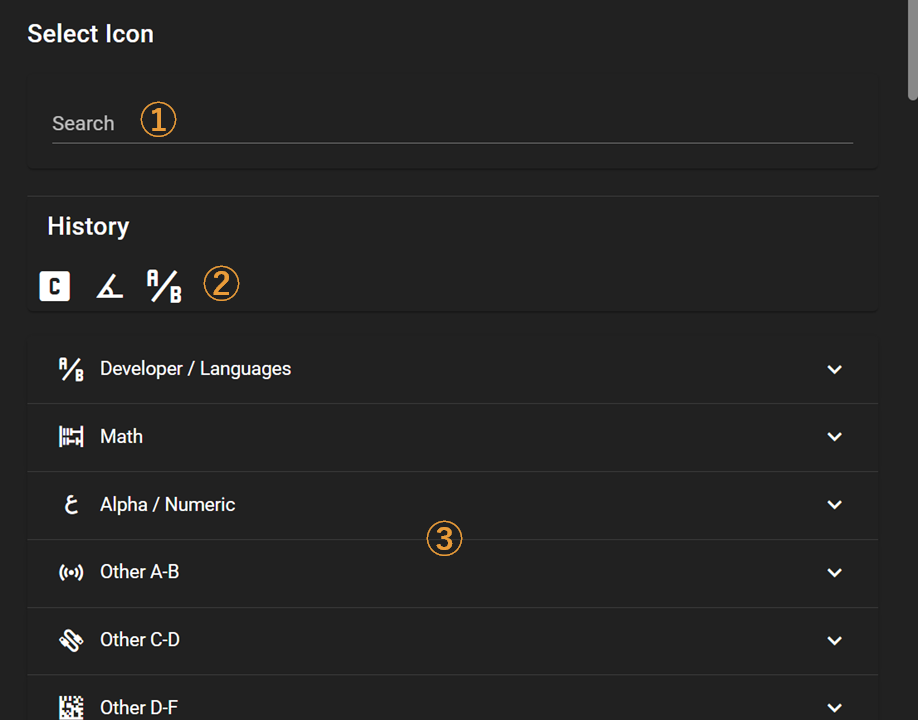
Feature Overview:
- Icon Search - Search by icon code or keywords
- Icon History - Recently selected icons appear here
- Icon Category Browser - Click to open icon categories, scroll down to view more categories
Custom Icon Selector
Click ③ in the foreground editing interface to open the custom icon selector.
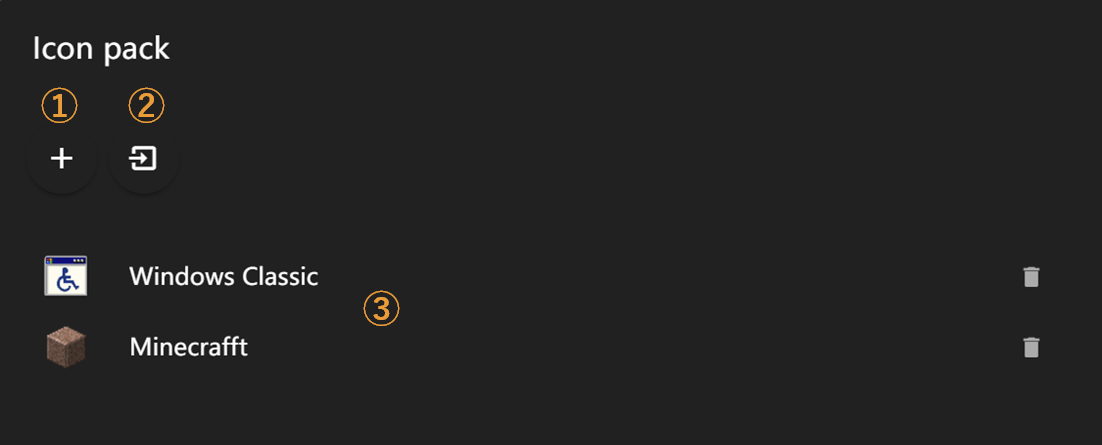
Feature Overview:
- Create a new icon pack
- Import an icon pack from file (.iconpack)
- Icon Pack List - Click to enter the respective icon pack
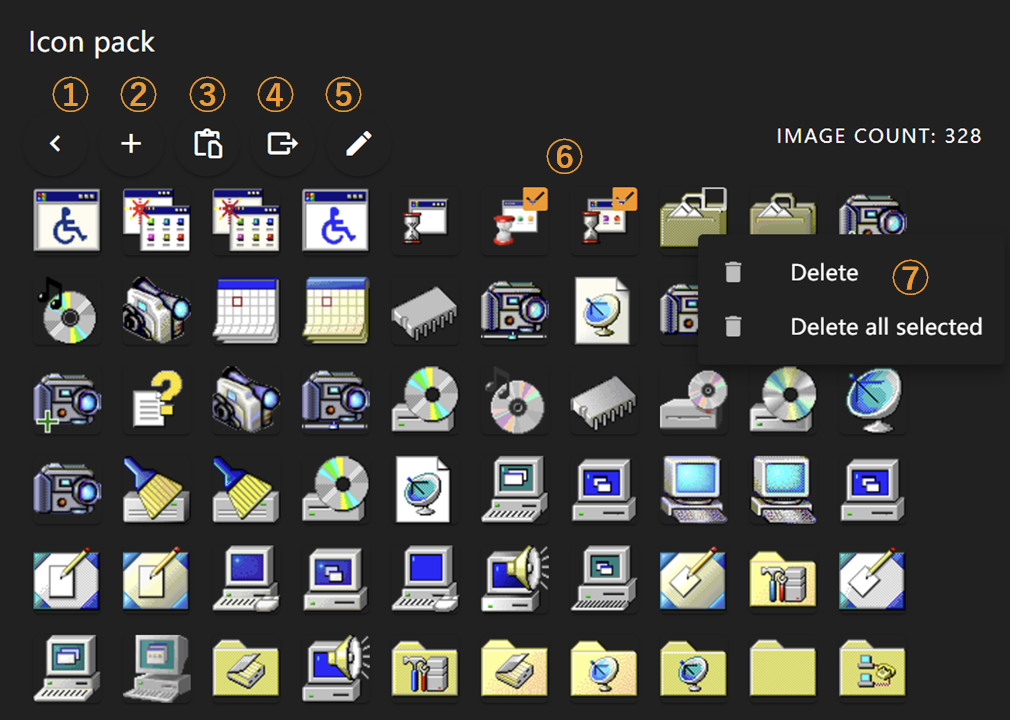
After clicking ③ on the previous page, you'll enter the icon selection page. Feature Overview:
- Return to previous page
- Open image files to add as icons - supports adding multiple icons at once
- Import images from clipboard to add as icons
- Export current icon pack to file (.iconpack)
- Edit current icon pack title and description
- Hover over any icon to click and use, or use selection box for multiple icon selection
- Right-click on icons to open menu - delete current icon or multiple selected icons
Emoji Selector
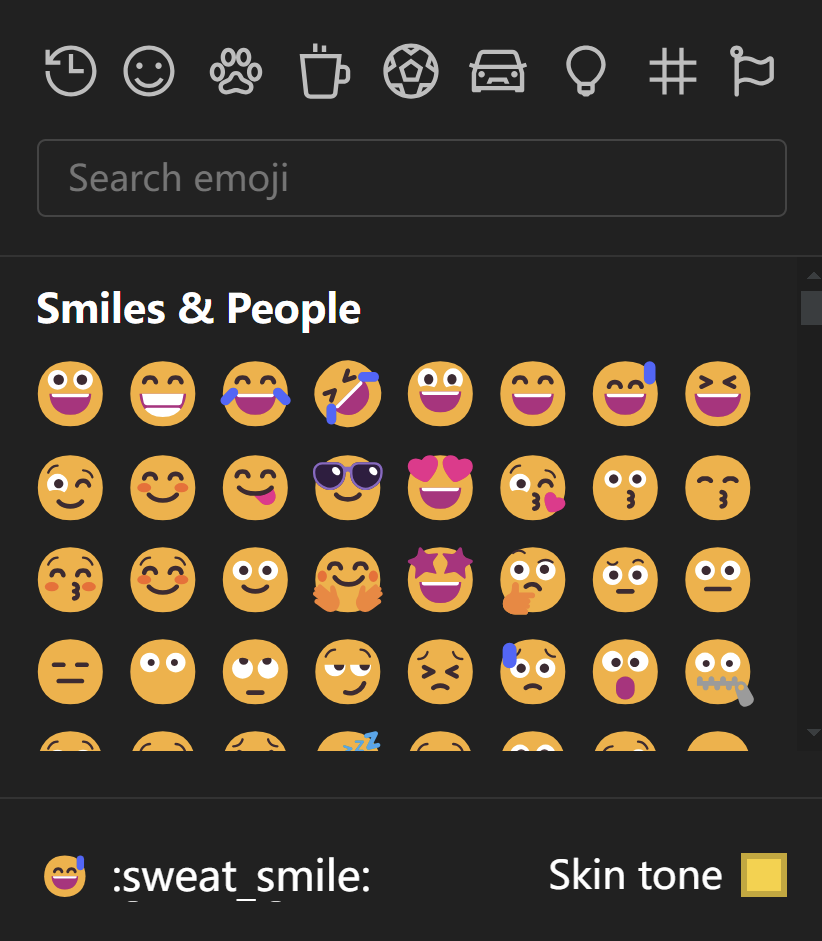
Click ④ in the foreground editing interface to open the Emoji selector, where you can choose your favorite Emojis to use as icons.
Note: Emoji appearance may vary across different operating systems
Preset Layout Selector
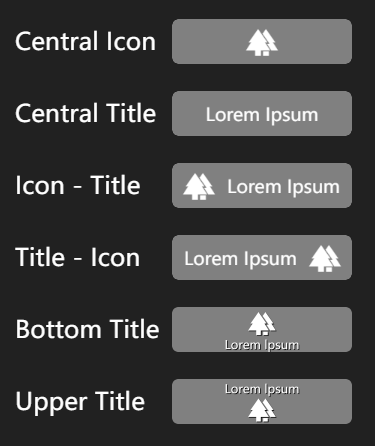
Click ⑤ in the foreground editing interface to open the preset layout selector, which offers several common icon-title layouts for direct use.
Font Selector
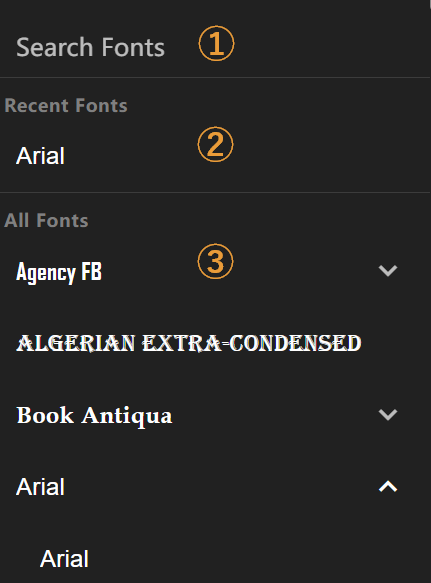
Click ⑫ in the foreground editing interface to open the font selector.
Feature Overview:
- Font Search Box - Search for font names
- Recently Used Fonts - Your recently selected fonts appear here
- Font List - Preview font appearances directly, with multiple font styles shown in submenus if available