
Edit Background
This document describes how to customize a button's background, including background images, borders, colors, and other parameters.
Interface Overview
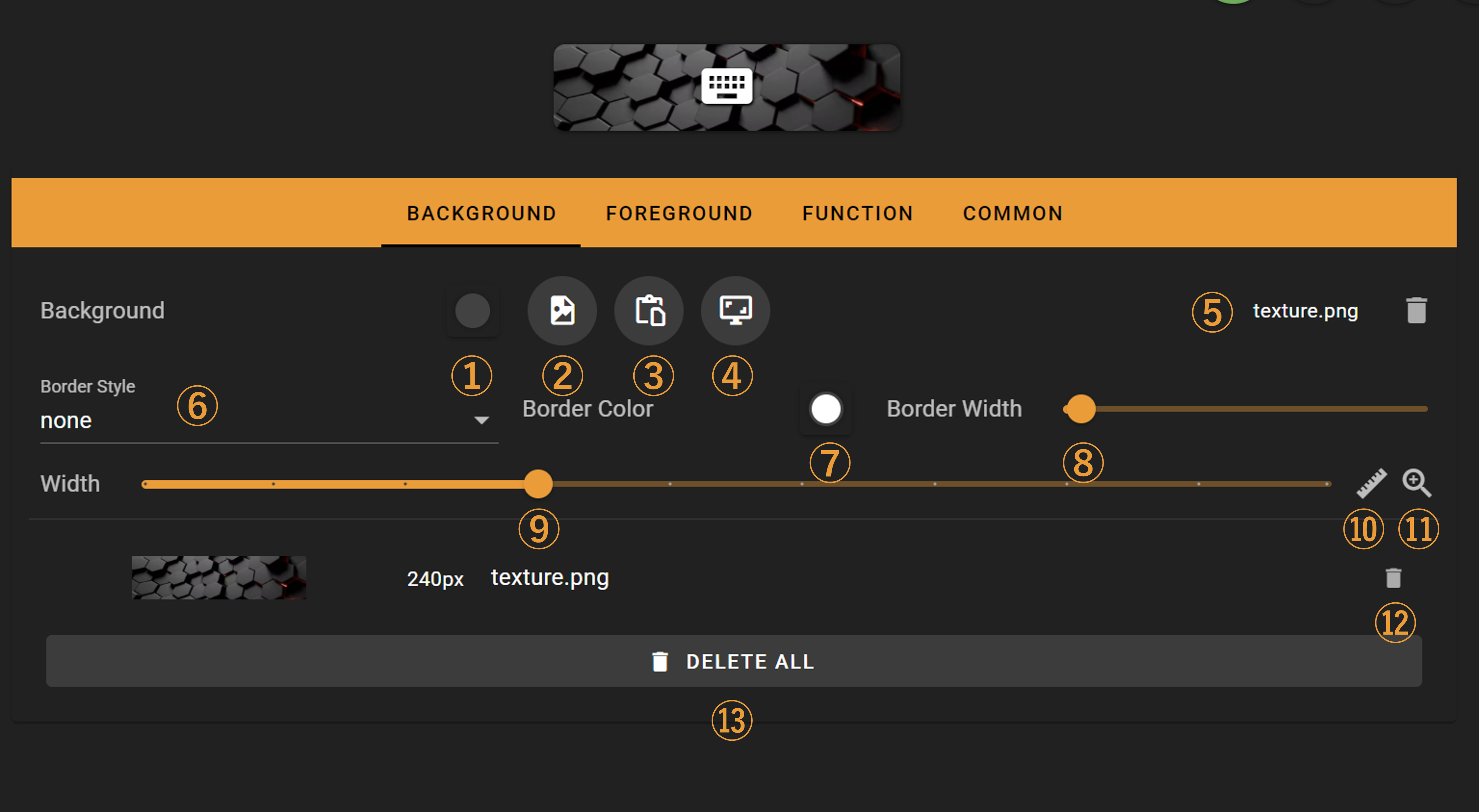
The following features are available:
- Background color selection
- Open an image file as background (supports jpg, png, and gif formats)
- Import image from clipboard as background
- Capture a portion of the screen as background
- Current image filename with delete button to remove the background image
- Border style selection (supports single solid line, double solid line, dotted line, and 3D styles)
- Border color selection
- Border width slider
- Button width slider
- Toggle button width slider step size (switches between 60px and 10px)
- Toggle maximum adjustable button width (switches between 600px and 2170px)
- Imported background image gallery with delete buttons for individual images
- Delete all imported images
Image Editing
When importing a background image, you can crop the image
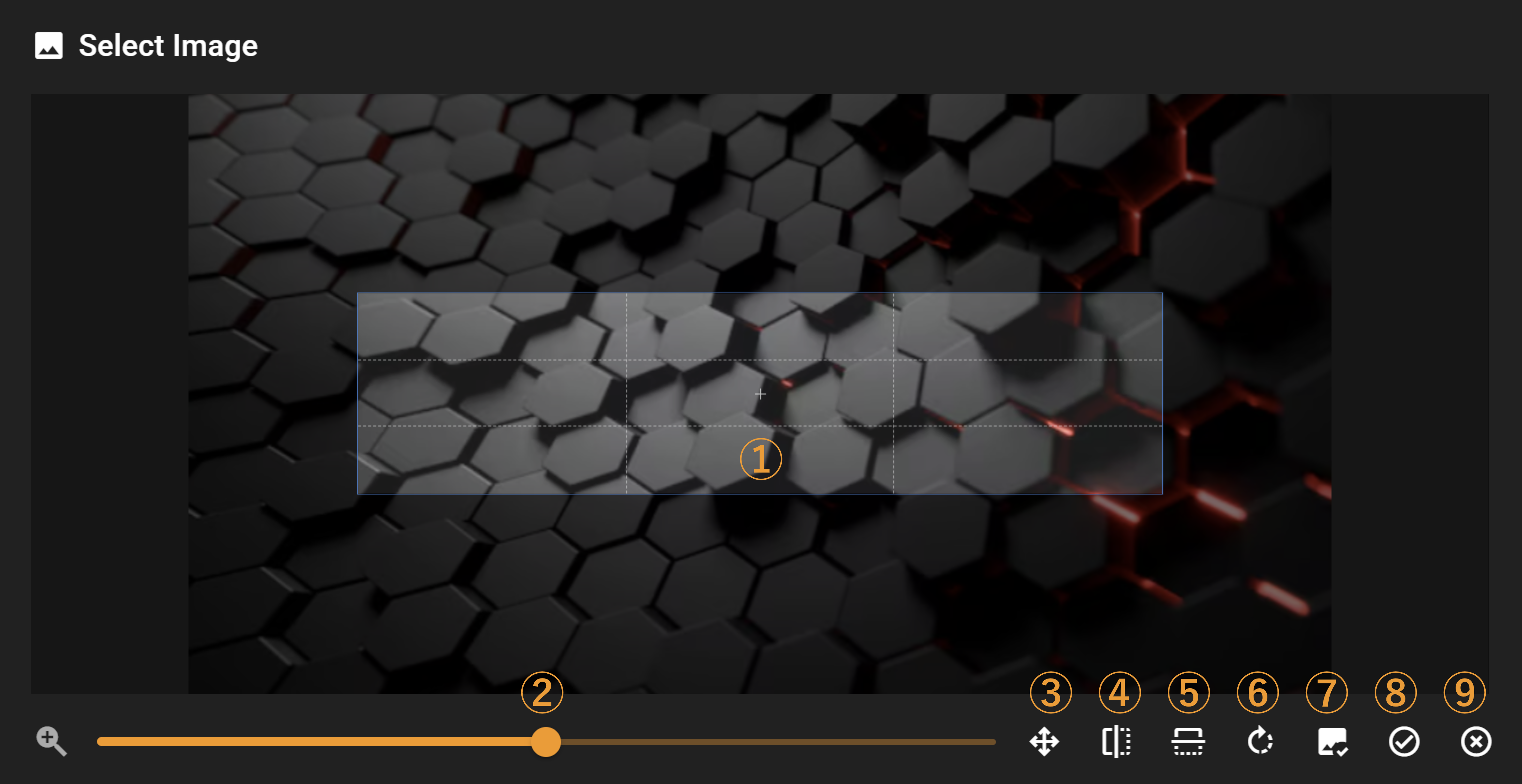
The following features are available:
- Image cropping frame (dimensions match current button width, height is fixed)
- Image zoom slider (mouse wheel can also be used for zooming)
- Auto-scale image to fit
- Horizontal image flip
- Vertical image flip
- Clockwise image rotation
- Use original image without cropping or modifications (useful when your prepared image matches the button dimensions exactly)
- Apply changes and import image
- Discard changes
When importing a GIF animation, you can adjust playback speed and other parameters
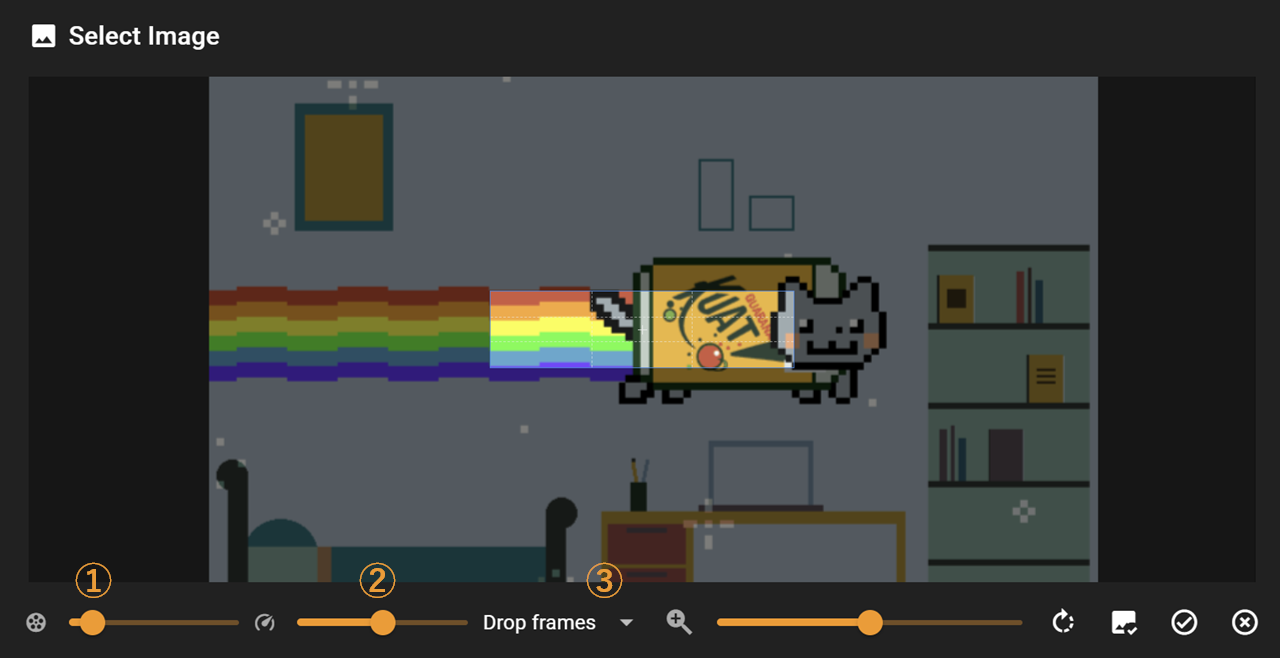
The following features are available:
Frame rate adjustment (up to 30fps)
Note: Due to performance limitations, higher frame rates may cause lag
Speed adjustment for GIF playback
GIF adjustment strategy:
- Drop frames: Excess keyframes will be discarded when adjusting frame rate
- Extend frames: No frames will be discarded, but the final GIF playback duration may be longer than expected