
Page Editor
In the page editor, you can manage Flexbar devices, preview and edit pages. You can use the mouse wheel to zoom and drag the virtual Flexbar.
 Feature descriptions:
- Fit to screen: Click to reset Flexbar's zoom level and position
- Tree view: Click to browse all subpages and keys in a tree structure for quick navigation between multiple subpages
- Save your changes
- Undo
- Redo
- Key temporary storage: You can temporarily store keys here for later use
- Device overview: Select devices to upload here
- Upload configuration to device
- Page scroll: When elements exceed page width, use the scroll buttons on both sides to browse the interface
- Drawer button: Click to open the drawer. Keys in the drawer won't change with the main page and can be used for frequently used keys
- Preview interface: Drag to reorder keys or drag new keys from the key library
- Storage status indicator: Your configuration is saved to Flexbar, showing storage space usage. Keys don't use much storage, but GIFs do
Key Submenu
Right-click on a key to open the menu.
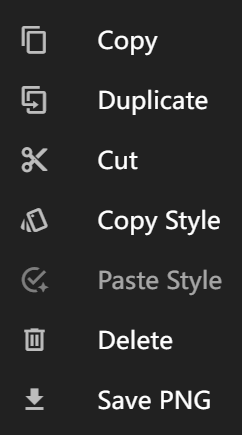
Functions in order:
- Copy current key
- Create a duplicate of current key on current page
- Cut current key
- Copy current key's appearance
- Paste copied appearance to current key
- Delete current key
- Save current key as image (not applicable to some keys)
Page Submenu
Right-click anywhere in the page editor to open the page submenu.
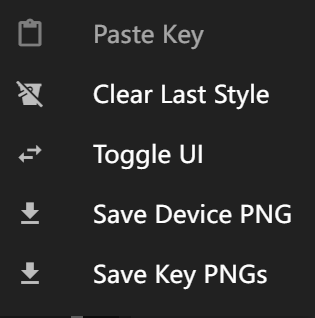
Functions in order:
- Paste copied keys to current page
- Clear auto-remembered styles
- Close virtual UI
- Save current page as image (not applicable to some keys)
- Save each key as a separate image (not applicable to some keys)